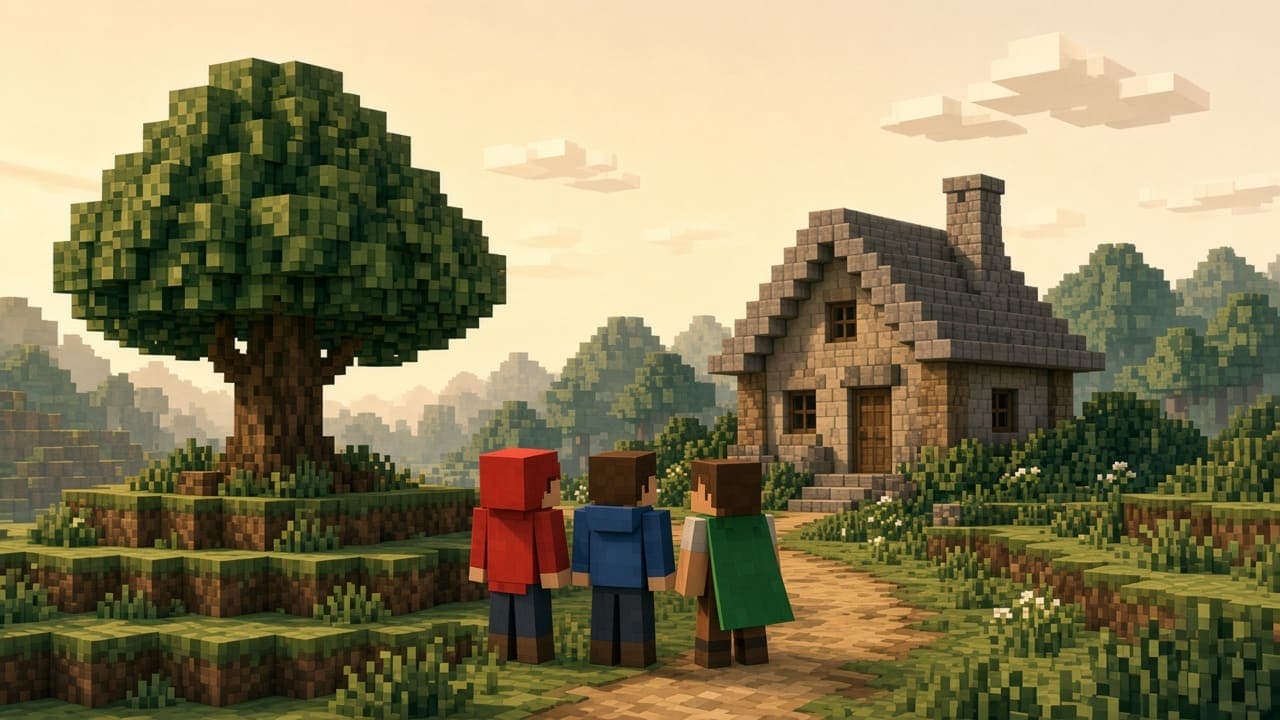
A new Minecraft world starts with the same default character as everyone else. After a few hours, most players want to look different. That is what Minecraft skins are for: a skin changes how your character looks, without changing how the game plays.
Skins are easy to get once you know the three things that trip people up. They are PNG files, they come in two arm styles, and the way you apply them is different on Java Edition and Bedrock Edition. This guide explains all three, shows where to download skins safely, and walks through making your own.
What Is a Minecraft Skin?
A skin is a small picture that wraps around your character like a coat of paint. It covers the head, body, arms, and legs. Other players see your skin in multiplayer, and you see it in third person view and in the inventory screen.
A skin is only cosmetic. It does not make you stronger, faster, or harder to hit. It also works with any game mode, any world, and any texture pack.
Minecraft Skins at a Glance
| Detail | Answer |
|---|---|
| File type | PNG image |
| Standard size | 64 x 64 pixels |
| Arm styles | Classic (wide) and Slim |
| Java Edition | Change through the launcher or minecraft.net |
| Bedrock Edition | Change in the Dressing Room inside the game |
| Cost | Free for custom skins, paid for some Marketplace packs |
Classic vs Slim Skins
Minecraft has two player models. The Classic model, also called Steve, has arms that are four pixels wide. The Slim model, also called Alex, has arms that are three pixels wide.
Both use the same file size, so the picture does not tell you which one you need. If you choose the wrong model, the arms look cut off or a thin strip of the skin shows up where it should not. Most skin sites list the model type next to the download. If you are unsure, pick one, check the preview, and switch if the sleeves look wrong.
How to Change Your Skin on Minecraft Java Edition
There are two ways. The launcher is the quickest, and the website works when you do not have the game open.
Change Your Skin in the Minecraft Launcher
- Open the Minecraft Launcher and sign in.
- Select Minecraft: Java Edition on the left.
- Click the Skins tab at the top.
- Click New Skin.
- Give the skin a name and choose Classic or Slim.
- Click Browse, pick your PNG file, and save.
- Make sure the new skin is the one in use.
Change Your Skin on minecraft.net
- Go to minecraft.net and sign in with your Microsoft account.
- Open your profile and find the skin area.
- Choose Upload Skin and pick your PNG file.
- Select Classic or Slim, then save.
New skins can take a few minutes to show up. If it still looks old, restart the game and sign out and in again.
How to Change Your Skin on Minecraft Bedrock
Bedrock does this inside the game, in a menu called the Dressing Room. The steps are almost the same on Windows, Android, and iPhone.
- Open Minecraft and tap or click the Dressing Room button on the main screen.
- Select your character, then Edit Character.
- Open the Classic Skins tab, then Owned.
- Choose Import or Choose New Skin.
- Pick your PNG file and confirm if it is Classic or Slim.
On a phone, the game opens your file picker, so save the PNG to your device first. Console players may not be able to import a PNG, because some consoles have no normal file picker. They can still use the free and paid skins that appear in the Dressing Room.
Imported skins on Bedrock often stay on the device where you imported them. If you play on a phone and a PC, import the file on each one.
Where to Download Minecraft Skins
You do not need to make a skin yourself. A few sites and in-game places have huge collections.
The Skindex
The Skindex is one of the biggest skin libraries. You can browse by theme, preview a skin in 3D, and download the PNG. It also has an editor.
NameMC
NameMC lets you search skins and see what other players use. It is handy if you want something popular or you want to find a skin you saw on a server.
Planet Minecraft
Planet Minecraft has skins made by fans, plus maps and texture packs. Many creators share extras like matching art.
The Minecraft Marketplace
On Bedrock, the Marketplace sells skin packs. Some packs are free, and others cost Minecoins. These packs are tied to Bedrock, so they do not work on Java Edition.
How to Download Skins Safely
A skin is just a picture, so a real skin file is a PNG and nothing else. If a site gives you an .exe, .jar, or .apk file and calls it a skin, do not open it. Avoid sites that ask you to install an app, sign in with your Minecraft account, or pay in a strange way.
Use sites you know, keep the file name simple, and do not share your password with anyone offering to "upload your skin for you." Parents who help younger players should check the download folder before opening anything.
How to Make Your Own Minecraft Skin
Making a skin is easier than it looks. You do not need to draw well, because the skin is made from small flat squares.
Pick a Skin Editor
A browser editor is the easiest place to start. The Skindex editor and similar sites show a 3D character that you color pixel by pixel. If you want more control, a free tool such as Blockbench lets you paint on the model.
Start With a Plan
Choose a simple idea first, like a hoodie, a knight, or a favorite color theme. Decide your main colors before you start, because too many colors can look messy at this size. Many players begin by editing an existing skin and changing the colors.
Use the Layers
A skin has two layers. The base layer is the body, and the outer layer sits on top for things like hats, jackets, hair, and sleeves. The outer layer is slightly bigger, which gives your character some depth. Turn the outer layer on in the editor so you can see it.
Test and Save
Rotate the model in the editor and check the back and the sides. Save the file as a PNG, then upload it using the steps above. If something looks off, go back to the editor, fix it, and upload again.
Common Skin Problems and Fixes
My Skin Is Not Changing
Restart the game and wait a few minutes. On Java, sign out and back in. On Bedrock, go back into the Dressing Room and select the skin again.
My Skin Looks Broken
You probably picked the wrong arm model. Switch between Classic and Slim and see which one fits.
The Skin Will Not Upload
Check that the file is a PNG and that it is 64 x 64 pixels. Other sizes and file types can cause an error.
Other Players Cannot See My Skin
On servers, skins come from your account. If a server runs in a special mode, it may show everyone as the default character. On Bedrock, an imported skin may only show on devices that have it.
I Lost My Skin After Switching Devices
Skins imported on Bedrock may stay local. Import the PNG again, or keep a copy of your skin in cloud storage.
Tips for Picking a Good Skin
Choose a skin that you can still recognize from far away, because small details disappear at a distance. Keep the colors different from the grass and stone around you if you do not want to blend in. If you play with friends, a matching theme makes a group look fun. For a fresh look in a world you already know, you can also change your lighting with shaders, as explained in how to install shaders in Minecraft.
Frequently Asked Questions
How do I change my skin in Minecraft?
On Java, open the launcher, go to Skins, and add a new skin. On Bedrock, open the Dressing Room, choose Classic Skins, and import a PNG.
Are Minecraft skins free?
Custom skins are free. Some skin packs in the Bedrock Marketplace cost Minecoins.
What size should a Minecraft skin be?
64 x 64 pixels is the standard size for a skin file.
What is the difference between Classic and Slim?
Classic arms are four pixels wide, and Slim arms are three pixels wide. Pick the one that matches your skin file.
Can I use the same skin on Java and Bedrock?
You can use the same PNG on both, but you need to upload it separately on each edition. Marketplace skin packs only work on Bedrock.
Can I change my skin on a phone?
Yes. On Android and iPhone, open the Dressing Room in Bedrock and import a PNG from your device.
Why is my skin not showing?
Restart the game, wait a few minutes, and check that the model type and the file are correct.
Is it safe to download skins?
It is safe when you use a known site and the file is a PNG. Never open an .exe, .jar, or .apk file that claims to be a skin.
Conclusion
Minecraft skins are small PNG files that change how your character looks. Pick Classic or Slim, upload the file through the launcher on Java or the Dressing Room on Bedrock, and keep your downloads to sites you trust. You can also make your own skin in a free editor in a few minutes.
If you are new to the game, how to play Minecraft is a good next step, and our guide on Minecraft for PC explains which edition to buy.